

 9am – 5pm Eastern, Monday – Friday
 133 N Dupont Blvd Ste 103, Smyrna, DE 19977
 Sale Tax Free Shopping!
Solutions to the Common Issues with the Dell Latitude 7220/7212 Rugged Tablets
20th Feb 2026
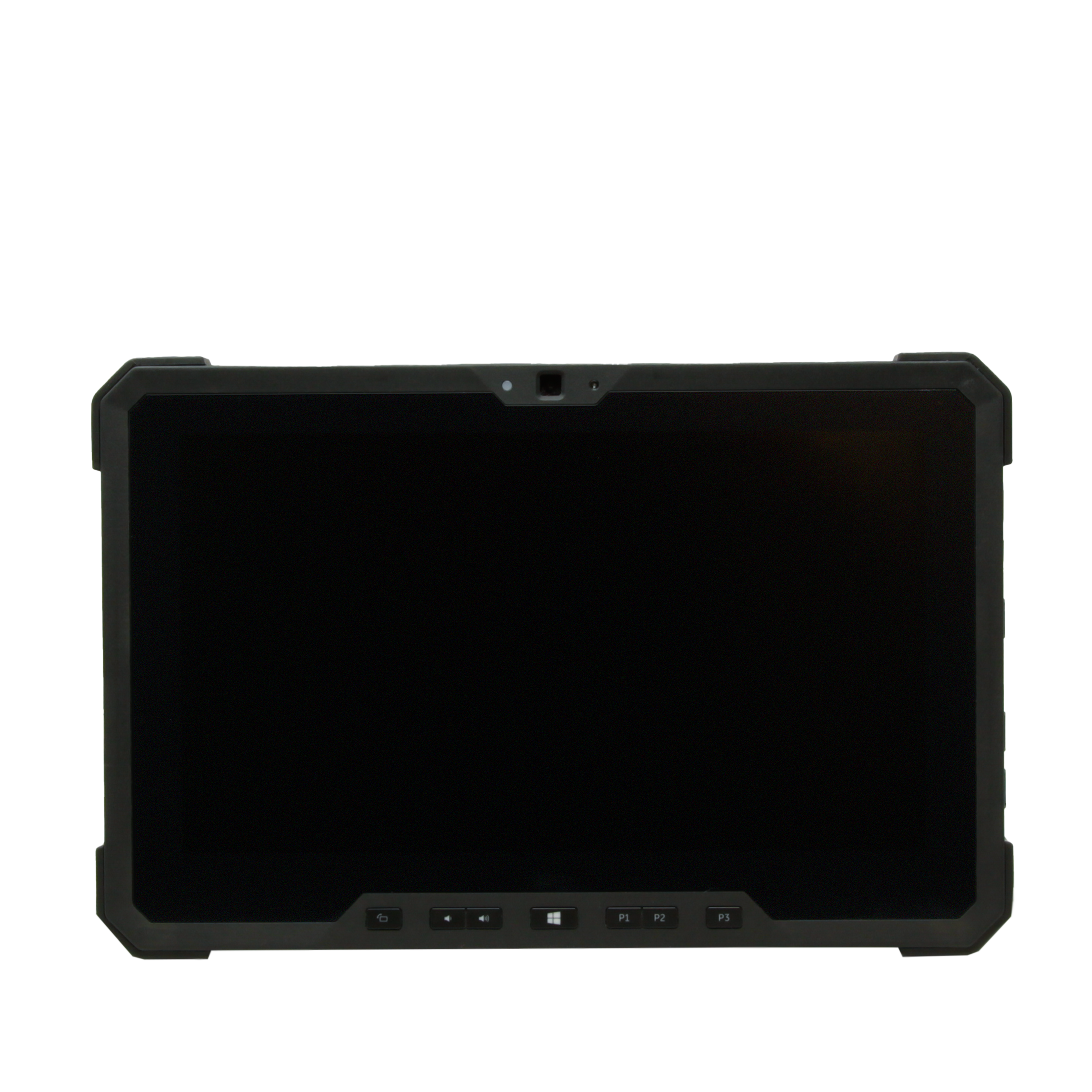
The Dell Latitude 7220 and 7212 are popular rugged tablets built to resist harsh conditions found in fieldwork, industrial sites, and other demanding environments. Their durable design, water- and dust-resistance, and reinforced screens make them popular with professionals who need reliability on the go.
Knowing these frequent pain points and knowing which can be fixed and which require professional help or a replacement device can save you time, money, and frustration. These are also among the most frequent issues we see in our repair department when refurbishing Dell Latitude 7220 and 7212 units—challenges our customers have experienced firsthand in the field. Our team routinely handles these repairs to ensure the tablets you receive are reliable and ready for action.
Frequent Physical & Component Failures
While the Dell Latitude 7220 and 7212 are engineered for durability, there are still several hardware-related issues we see regularly in the repair center. These are not just software quirks or user errors, but actual failures or signs of wear in the tablet’s physical components. Recognizing these common hardware problems can help you quickly identify when your device might need attention or professional service. Below, we outline the most frequent hardware failures encountered during use and refurbishment:
Power Port Issues
The power port is a known weak point on both the 7220 and 7212. It can physically break or stop working. The good news is that the port is replaceable, but you’ll need to remove the screen to access it. Once inside, a few screws and connectors are all that stand between you and a new port. If the port isn’t physically broken but doesn’t work, swapping it for a new one is worth a try—but if the underlying issue is on the system board, a new port won’t fix it. Unfortunately, you won’t know until you try.
Cooling Fan Failing
Fans are another common failure, often announced by a grinding noise. Like the power port, the fan is replaceable, but requires removing the screen. On the 7212, it’s as simple as unscrewing and disconnecting the fan. The 7220 adds a step: you’ll need to remove the heat sink (which is screwed into the fan) first, then follow the same process.
Display Issues
Screens on the 7220 and 7212 are prone to scratches, as they don’t come with screen protectors. Less frequently, the touchscreen can fail, or the display may become discolored. The only fix for these issues is replacing the screen. To avoid scratches, consider installing a third-party screen protector (no official Dell options have been announced that I’ve seen).
Touchscreen Failure or Ghosting
The touchscreen may stop responding, become intermittently unresponsive, or exhibit ghosting (erratic touches that you didn't make). This can sometimes be resolved by updating the touchscreen drivers or using the eGalaxTuner tool to reset or recalibrate the touchscreen, especially if the issue is due to communication errors.
Windows Hello Failure
The Windows Hello facial recognition feature has a known weakness: it often fails to work reliably in direct sunlight. If Windows Hello doesn't recognize you, you’ll need to log in with your PIN or password.
Performance & Stability
Some users report that the system runs slowly, hangs, freezes, or even restarts unexpectedly. These issues could be related to overheating, faulty updates, or hardware stress. Keeping drivers and firmware up to date, along with regular system maintenance, can help ease these problems.
Docking/Port Issues
Problems with docking or connecting peripherals can arise, frequently because of dust or debris in the docking port. If you experience unreliable or failed connections, try gently cleaning the docking contacts and making sure there’s no obstruction. Continuing issues may require professional inspection.
Lack Of Upgradability
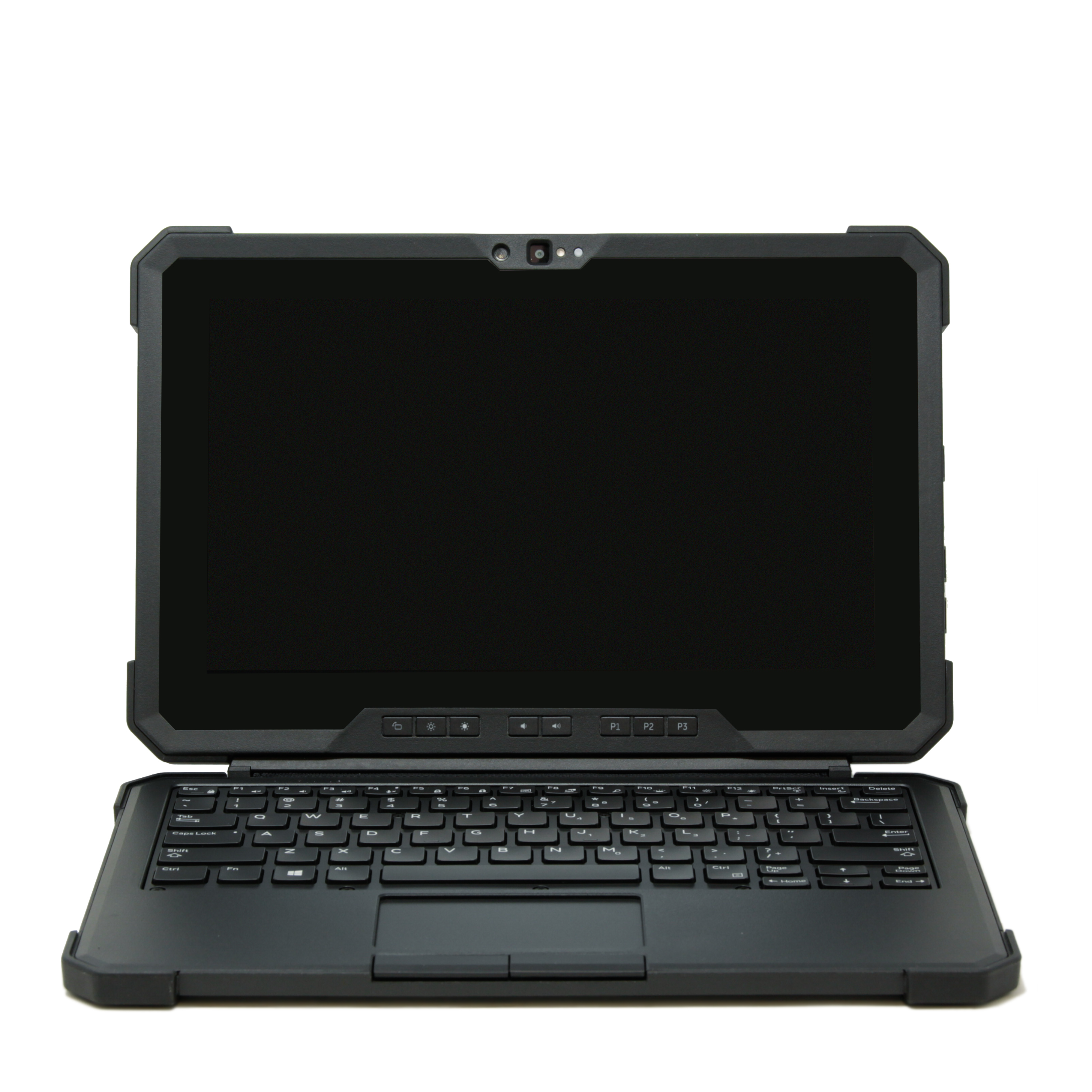
One of the trade-offs of the rugged, compact design of the Dell Latitude 7220 and 7212 is their limited upgradability. Unlike many traditional laptops or desktops, these rugged tablets are intentionally engineered with most key features integrated directly onto the system board. This helps with durability, water and dust resistance, and overall dependability in harsh environments—but it also means that certain upgrades aren’t possible after purchase. For organizations planning deployments and for individual buyers, it’s critical to select the right configuration from the start, as these limitations are not easily overcome later.
Adding GPS
If you’re hoping to add GPS to your Latitude 7220 or 7212 after purchase, unfortunately, that’s not an option. The GPS module is factory-installed on the system board and cannot be retrofitted. There are no available slots or connectors for adding this feature after the fact. If GPS functionality is essential for your fieldwork or application, verify that your chosen unit includes it before making a purchase.
Upgrading RAM
Memory upgrades are similarly restricted. The RAM in both the Latitude 7220 and 7212 is soldered directly to the motherboard, with no expansion slots or user-accessible upgrade paths. This design maximizes reliability and lowers potential points of failure, but it means you’re locked into the amount of memory your tablet shipped with. Carefully consider your multitasking and application needs before purchasing—if you require higher RAM for your workflow, ensure your configuration meets those demands from day one.
Adding a Mobile Data Card
Mobile broadband capability is another feature that must be factory-installed. If your tablet didn’t ship with a mobile data (cellular) card, adding one later isn’t possible in most cases. The necessary antennas and connectors are only present in units configured for mobile data at the time of manufacture. Even if you install a SIM card or a compatible module, the absence of antennas means the device won’t function as intended. If you need LTE or mobile data in the field, make sure to purchase a unit that includes this option.
These limitations on upgradability are common across most rugged tablets—not just Dell’s. While they may be frustrating for some, they are key to keeping the strength and dependability that make these devices suitable for tough environments. The best advice is to anticipate your needs and invest in the right setup from the beginning.
How to Access the Dell Latitude 7220's BIOS
Accessing the BIOS on the Dell Latitude 7220 can be essential for troubleshooting, system configuration, or changing boot priorities. Here are the main methods you can use:
 Using a Physical Keyboard
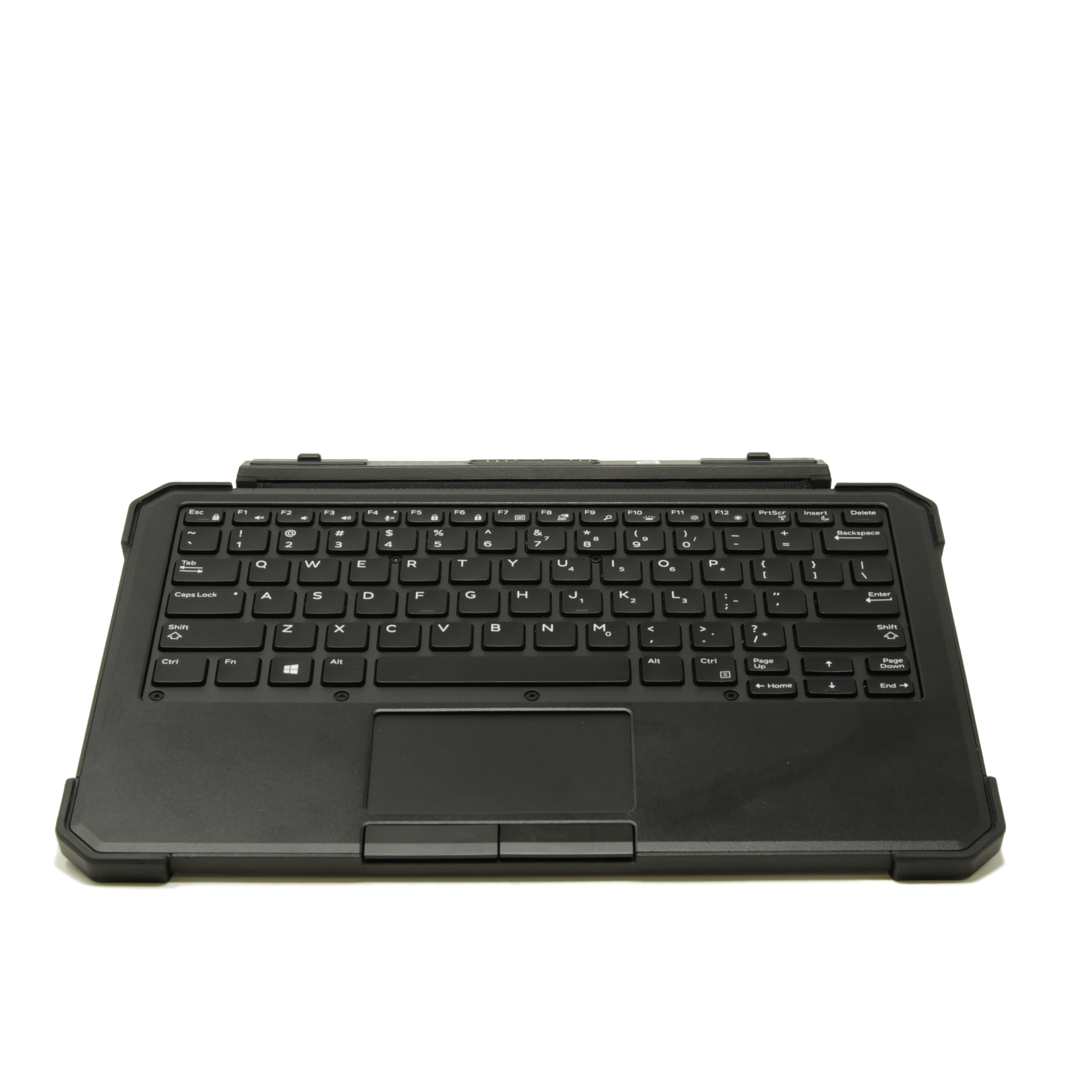
If you have a keyboard connected—either via USB or the official Dell keyboard attachment—power on the tablet and immediately begin pressing the F2 key repeatedly as soon as the Dell logo appears on the screen. This should bring you directly into the BIOS setup menu before Windows starts to load. Timing is important: if you miss the window, restart and try again.
Using the Touchscreen (No Keyboard)
For users without a keyboard, Dell has included a touchscreen shortcut. As soon as the Dell logo appears during startup, quickly tap the top left-hand corner of the touchscreen repeatedly. This gesture acts as a substitute for the F2 key, allowing access to the BIOS. If it doesn’t work on the first try, power off the device and try again, making sure you tap right as the logo appears.
Conclusion
While the Dell Latitude 7220 and 7212 are tough tablets, certain problems persist. Some are repairable with moderate effort, while others—like adding GPS, RAM, or mobile data—are only possible at the time of purchase. Screen care and deliberate handling can go a long way toward extending the life of your rugged tablet.