

 9am – 5pm Eastern, Monday – Friday
 133 N Dupont Blvd Ste 103, Smyrna, DE 19977
 Sale Tax Free Shopping!
How to Upgrade a Rugged Computer for Maximum Performance
10th Jul 2026
A rugged computer has proven itself in the most difficult conditions - dropped from the truck, rained on, exposed to high temperatures in the desert, and still works. If you have seen the rugged computer survive when other laptops failed, then you will understand why this machine is appreciated by soldiers, paramedics, power line workers, and construction workers.
Of course, even the most durable laptop gets old. Years of active operation, heavy operating systems, and a lot of unnecessary programs inevitably slow down the operation of any computer. But if any laptop becomes useless, a rugged computer does not become obsolete for many years, as it is designed to operate for several decades.
The good news is that you do not have to pay a huge amount of money for a new computer. Several targeted improvements – additional RAM or an upgraded storage drive will revive any rugged computer.
The following guide shows how to improve your rugged computer. The only tools needed to do this are a screwdriver and strict adherence to the instructions. This tutorial describes all important improvements that you could think of but were unable.
Why Upgrading Your Rugged Computer Is Worth It
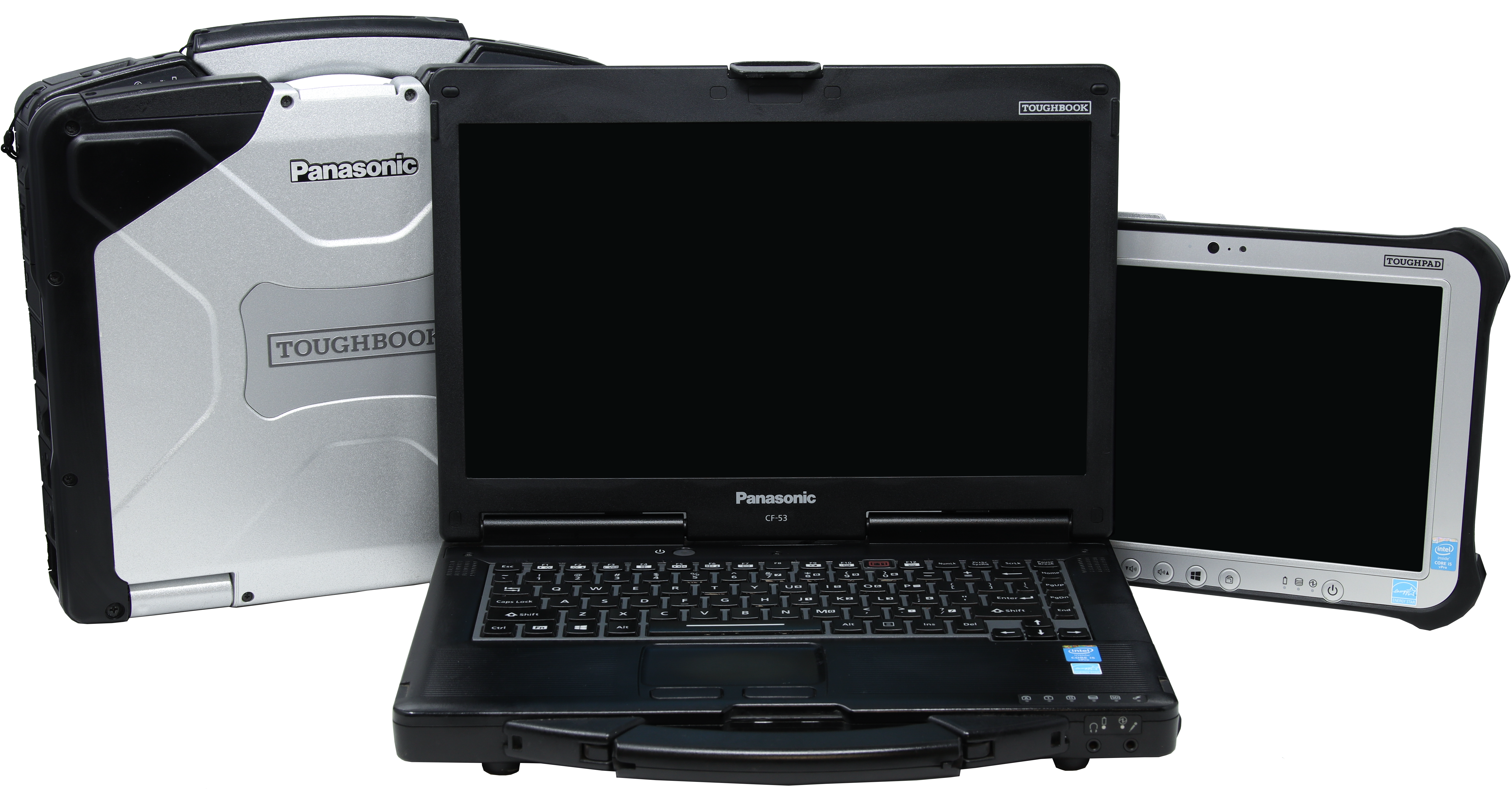 Before we get into the how, it helps to understand the why. Rugged computers are not cheap. A new one can cost anywhere from $2,000 to over $4,000. Buying a brand-new unit every few years adds up fast. Upgrading your current one is almost always the smarter and cheaper choice.
Many older rugged computer models run perfectly fine from a hardware standpoint. The chassis is tough, the screen still works, and the keyboard holds up well. The only thing holding them back is outdated internal parts. With a few smart upgrades, you can run modern software, handle bigger files, and get through a full workday without the laptop slowing to a crawl.
Understanding Your Rugged Computer Model Before You Begin
Not every rugged computer is the same.
Panasonic makes its Toughbooks and Toughpads in the CF series and the FZ series. And then each of those models has a handful of generations (MK). Each model has its own set of compatible parts. Some MKs for each model even have their own parts. Check the bottom of the computer for a full model number. If you would like to learn how to decode that model number, check out our blog on it.
Getac does its models similarly. Whether you have an S410 or S510 is important information to find before purchasing any upgrades. These also have their own generation system. Typically, on the bottom of the computer, there is a “S410 G3” label. “G#” is Getac's version of Panasonic’s MK.
Dell has their own way of doing this. They have 54 series laptops, for example. (5404, 5414, 5424, and 5430) Some parts are compatible with all of these models; others are not. These, however, do not have a generation system to worry about.
Before you buy anything, you need to know exactly which model you have.
Checking What Is Already Inside
Once you know your model, find out what parts are currently installed. On Windows, you can open the Task Manager and click on the "Performance" tab to see your current RAM and CPU. For storage, go to "This PC" or "My Computer" and check the drive size and free space. This gives you a clear starting point before spending any money.
Upgrade 1: Replacing the Hard Drive with an SSD
A traditional hard drive has moving parts inside. It uses spinning disks and a small arm to read and write data. This takes time. A Solid State Drive, or SSD, has no moving parts. It stores data on chips, which means it works much faster. On a rugged computer, switching to an SSD is hands-down the single biggest performance upgrade you can make.
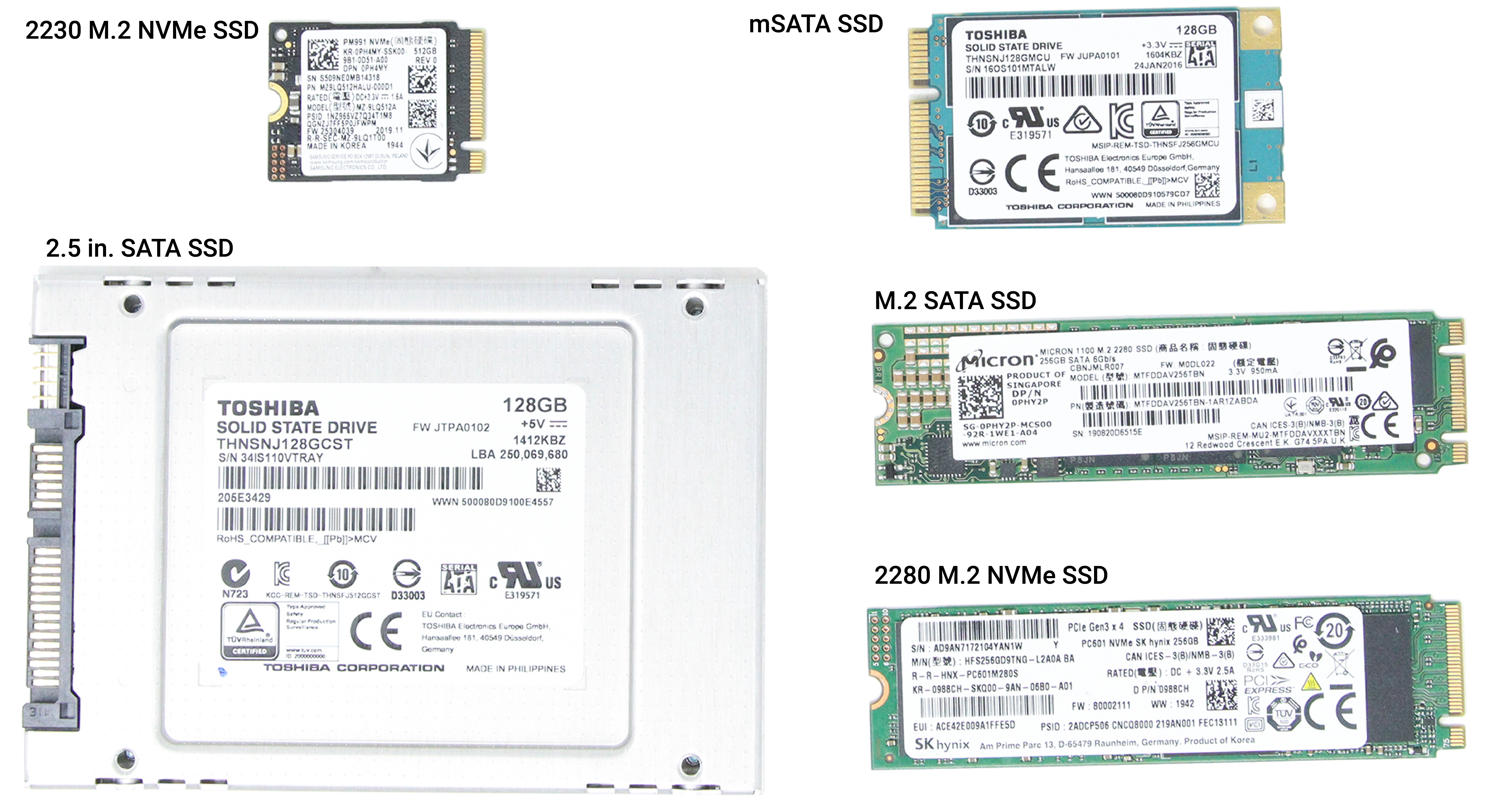
When you replace an old hard drive with an SSD, your rugged computer will boot up in seconds instead of minutes. Programs will open faster. Files will save and load with no delay. The difference is so big that most people feel like they have a completely new machine after this one change.
How to Replace the Hard Drive
First, back up all your data. Copy everything important to an external drive or a cloud service before you touch anything inside the laptop. Once your data is safe, get a 2.5-inch SATA SSD.
Turn off the laptop completely. Remove the battery if you can. Then find the hard drive bay, which is usually accessed from the bottom panel or a side slot depending on your model. Remove the old drive carefully, slide in the new SSD, and secure it in place. After that, reinstall your operating system or restore from a backup using a USB drive or recovery disc.
Choosing the Right SSD Size
A 256GB SSD is a solid starting point for most users. If you work with large files, videos, or maps, go for 512GB or 1TB. The price difference between sizes is not huge, so it is better to get more space than to run out later.
Operating System Reinstall Required
Keep in mind that if you do change the storage drive, you will have to reinstall your operating system of choice onto your new drive. This means you will need a copy of your operating system installation media (such as a Windows USB installer or a Linux live USB) and your license key or activation information, if required. Be sure to back up all of your important files, settings, and any software license keys before swapping drives, as the new drive will start completely blank.
After installing the new drive, insert your installation media and follow the prompts to reinstall the OS. You will then need to reinstall all your programs and restore your files from your backup. Some rugged computers may also require specific drivers for their hardware, so it’s a good idea to download them from the manufacturer’s website in advance and keep them on a USB stick. Planning ahead will make the transition as smooth as possible and minimize downtime.
Upgrade 2: Adding More RAM

RAM stands for Random Access Memory. Think of it as your laptop's short-term thinking space. When you open a program, the laptop loads it into RAM so it can work with it quickly. If you do not have enough RAM, the laptop has to keep going back to the hard drive to fetch information, and that slows everything down.
Older rugged computers often come with 4GB of RAM. That was fine years ago, but modern software needs more. If your rugged computer has Windows 10 or 11, having at least 8GB of RAM makes a big difference. If you run multiple programs at once or use mapping, database, or diagnostic software, 16GB is even better.
How to Add or Upgrade RAM
Check your model's manual or look it up online to find out how much RAM your rugged computer supports and what type it uses. Most rugged computers use DDR3 or DDR4 RAM. The speed rating also matters, so make sure the RAM you buy matches what your system accepts.
Open the RAM slot cover on the bottom of the laptop. If there is an empty slot, you can simply add a new RAM stick without removing anything. If both slots are full, you will need to remove the existing sticks and replace them with higher-capacity ones. Press the RAM in firmly until it clicks into place, then close the cover.
After starting the laptop, check the Task Manager again under "Performance" to confirm the new RAM is showing up correctly.
Upgrade 3: Upgrading or Adding a Second Storage Drive
Some rugged computer models have a second drive bay or an optical drive slot that you can convert into a second storage slot. This is a great way to add more space without replacing your main SSD.
You can buy a caddy, a small frame that lets you put a second drive in the optical drive bay. This way, you keep your main SSD for the operating system and programs, while the second drive holds your data files, maps, or records. The rugged computer handles both drives simultaneously without issue.
When to Use an mSATA or M.2 Drive
Some newer rugged computer models also have mSATA or M.2 slots inside. These are smaller, faster types of SSDs. If your model supports one of these, adding an M.2 NVMe drive can give you incredibly fast storage on top of your regular SSD. Check your model's specs to see if this is an option for you.
Upgrade 4: Wireless and Connectivity Upgrades
Older rugged computers may have Wi-Fi cards that only support older, slower standards. If your work requires fast file transfers or video calls over Wi-Fi, upgrading the internal Wi-Fi card to one that supports Wi-Fi 6, or at least Wi-Fi 5, can make a real difference.
The Wi-Fi card on most rugged computers is accessible through the bottom panel and uses an M.2 or mini PCIe slot. Swapping the card is straightforward: disconnect two small antenna cables, remove one screw, slide out the old card, and slide in the new one.
Adding External Connectivity With USB Hubs and Docks
If your rugged computer has limited ports, a USB-C or USB-A hub can give you extra connections for monitors, hard drives, keyboards, and more. Some rugged computer models also support dedicated docking stations that connect everything with one plug. This is not a performance upgrade in the traditional sense, but it helps your workflow move faster and keeps your desk organized.
Processor Upgrades: What You Need to Know
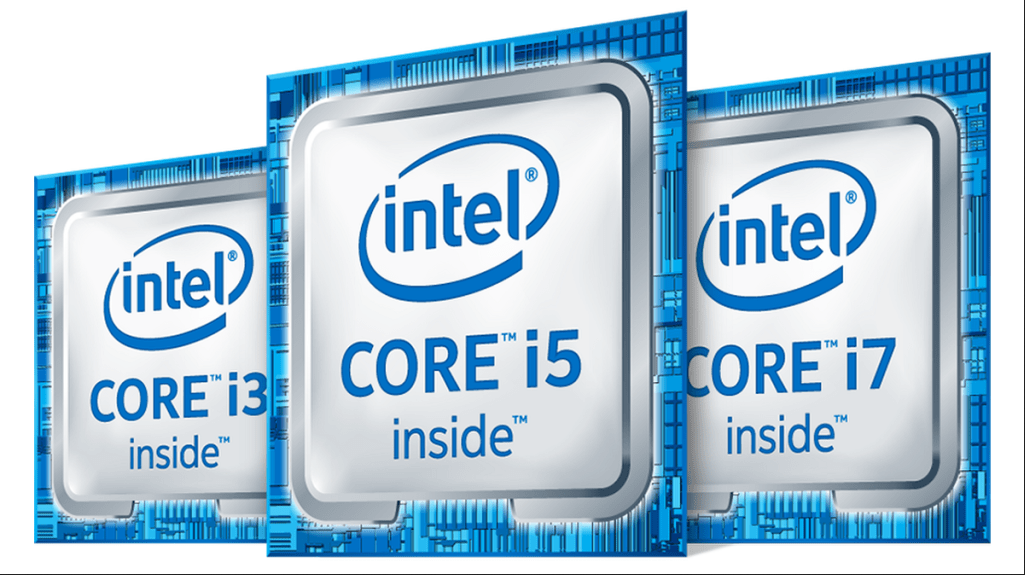 Unlike RAM or storage, the processor in a rugged computer cannot be upgraded. Rugged laptops are built with their processors soldered directly onto the motherboard, making replacement or upgrades impractical and unsupported.
If you find that your current rugged computer is struggling with processor-intensive tasks and you need significantly more speed, the only real solution is to upgrade to a newer model with a faster CPU. However, by applying the previous upgrades—installing an SSD, adding more RAM, and updating your wireless and storage options—you can ensure your rugged computer remains reliable and capable for as long as possible, extending its lifespan and maximizing your investment.
Final Tips Before You Start Upgrading
Work Slowly and Carefully: rugged computers are built tough, but the small components inside are still delicate. Use the right screwdrivers, usually Phillips-head in small sizes. Keep track of every screw. Take photos of how things look before you remove anything, so you know exactly how to put it back together.
Do Not Skip the Backup: Always back up your data before opening the laptop or making any changes. This cannot be said enough. Even if a step seems simple, something unexpected can always happen. A backup means you never lose your files no matter what.
Buy Quality Parts: Cheap RAM, fake SSDs, and low-quality batteries cause more problems than they solve. Stick to trusted brands and buy from reliable stores. A good part lasts years. A bad part can damage your system or simply stop working after a few months.
Bob Johnson’s Rugged Computer Upgrading Service
 We have a full-service repair department that offers upgrades. Fill out our Repair Form and let us know which upgrades you would like added. Our repair technician will send you a quote for all of the upgrades once we receive your computer.
If you need that processor upgrade, we do have a trade-in program. Fill out the form, and we can give you an estimated trade-in value for your computers. Trade-ins are strictly in-store credit.
Contact us if you have any questions or need help with these upgrades.
These upgrades are not complicated, and most of them can be done at home with basic tools and a bit of patience. Rugged computers are built to last. Make sure yours does not fall behind and guarantee that it can keep serving you well for many more years to come.