

 9am – 5pm Eastern, Monday – Friday
 133 N Dupont Blvd Ste 103, Smyrna, DE 19977
 Sale Tax Free Shopping!
Which Toughbook Should You Buy for Automotive Diagnostics?
25th Sep 2026
If you're running automotive diagnostics all day, chances are your laptop isn't sitting safely on a desk. Instead, it's probably moving from bay to bay, riding on a cart, and getting handled with dirty hands. It's also connecting to diagnostic equipment throughout the day. Because of that, you need something that can run your software without being babied every time you use it.
So, which Toughbook holds up for automotive diagnostics? It’s one of the most common questions we get at Bob Johnson’s Rugged Computers. While a standard laptop may work in some shops, frequent handling, drops, dust, and other service-bay conditions can shorten its useful life. A Toughbook gives you added protection when those conditions are part of the job.
Below is what we’ve learned from matching shops, dealerships, and mobile diagnostic techs to the Toughbook and configuration that actually fits their work.
Why Choose a Toughbook Over a Standard Laptop for Automotive Diagnostics?
A standard Windows laptop can run compatible automotive diagnostic software. The main reason to choose a Toughbook is the environment where that software is used.
For example, a shop computer gets carried between vehicles, set on work surfaces, and exposed to vibration, dust, grime, spills, and occasional drops. Toughbooks are built with those kinds of working conditions in mind.
That durability matters because the same computer may move from a cart to a vehicle and then connect to equipment in the bay throughout the day. A damaged port, hinge, or screen can take the diagnostic station out of service, creating downtime that slows repairs and keeps the shop from moving vehicles through as quickly.
Features That Make a Difference in the Shop
Durability is only part of the equation when choosing a laptop for shop use. Toughbooks also offer features like the ones below that can make diagnostic work easier throughout the day:
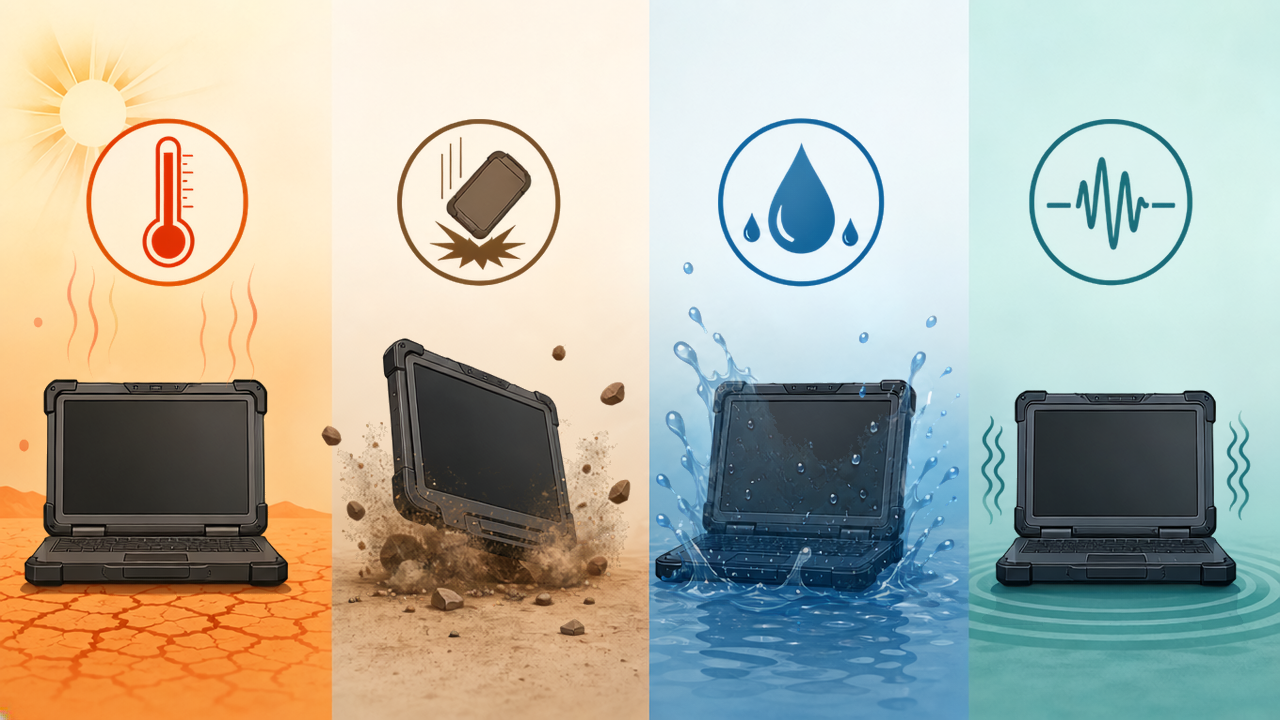
- MIL-STD-810H and IP-rated protection for drops, vibration, dust, spills, and temperature swings.
- Touchscreen options with glove, touch, and pen modes for easier use around a vehicle.
- Brighter displays that remain readable when diagnostic work moves outdoors.
- Configurable USB, Ethernet, and serial connectivity for compatible diagnostic interfaces and equipment.
- Hot-swappable battery options on applicable models to reduce interruptions during longer jobs.
- Windows compatibility with supported OEM and aftermarket diagnostic applications.
Of course, not every shop needs the same level of protection. Not sure how rugged yours needs to be? See our guide to the best laptops for automotive technicians, mechanics, and dealers for a closer look at the options.
Best Overall Toughbook for Automotive Diagnostics: Panasonic Toughbook FZ-55
For most automotive shops, the FZ-55 offers the right mix of ruggedness, performance, and flexibility. Here are two of the main reasons why.
Shop-Ready Durability Without the Extra Bulk
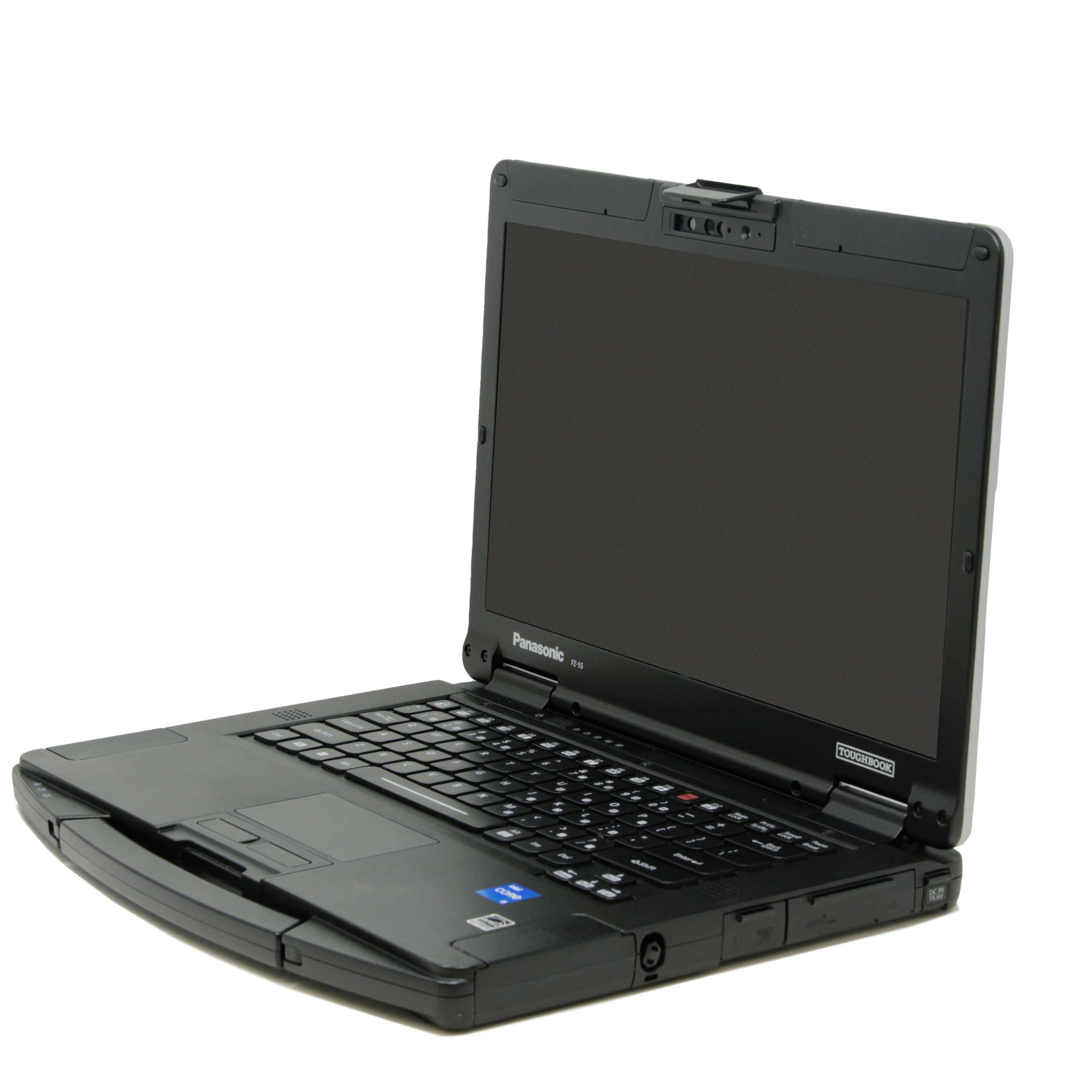
The Panasonic FZ-55 is a semi-rugged 14-inch laptop for professionals who need more protection than a business machine without moving to a fully rugged design. Panasonic tests the FZ-55 to MIL-STD-810H across 20 different conditions, including drops, vibration, dust, and temperature extremes. It’s also rated IP53 for dust and water resistance.
That level of protection is a strong fit for service bays, where the computer needs to tolerate daily handling without adding the size and weight of a machine intended for harsher field environments.
Its 14-inch display provides room for diagnostic software, live data, wiring diagrams, and service information. Touchscreen configurations are available with glove, touch, and pen modes. That screen size is also useful when a technician needs to compare scan data with a wiring diagram or service procedure instead of constantly switching between windows.
Bob Johnson’s current FZ-55 stock starts with 16GB of RAM and SSD storage, with RAM and storage upgrades available at order time.
The xPAK System Is a Major Advantage for Diagnostics
The FZ-55’s xPAK system is a major advantage for diagnostic work. The device’s modular expansion bays let you change certain connectivity and hardware options without replacing the laptop. Rather than buying every possible connection up front, a shop can prioritize the options its current diagnostic equipment requires.
For automotive diagnostics, the options that matter most are:
- Rear expansion options can add combinations of USB-A, Ethernet, and true serial connectivity to match compatible diagnostic hardware.
- A second hot-swappable battery can extend runtime without shutting down the computer.
- A secondary SSD adds room for diagnostic suites, service information, and other shop data.
That modular design makes it easier to adapt the FZ-55 as a shop’s connectivity or storage needs change. Its combination of durability, portability, and configurable hardware makes it our best overall Toughbook for automotive diagnostics.
See current configurations in detail on the Panasonic Toughbook FZ-55 page at Bob Johnson’s.
Other Toughbooks to Consider
The FZ-55 fits most repair shops, but different work environments and workflows may call for another model.
Panasonic Toughbook FZ-40: When You Need Full Ruggedness
The Toughbook FZ-40 is a fully rugged 14-inch laptop with IP66-rated protection and a 1,200-nit display for outdoor visibility. Choose it when technicians regularly diagnose vehicles outdoors or work in conditions that call for greater dust and water protection than the FZ-55 provides. The brighter display is especially relevant when a technician needs to read live data or service information in direct daylight.
For a typical service bay, that additional ruggedness may be more than you need. Think of the FZ-40 as the step up when your working conditions demand more protection than the FZ-55 provides.
Panasonic Toughbook CF-33: When You Want a Rugged 2-in-1
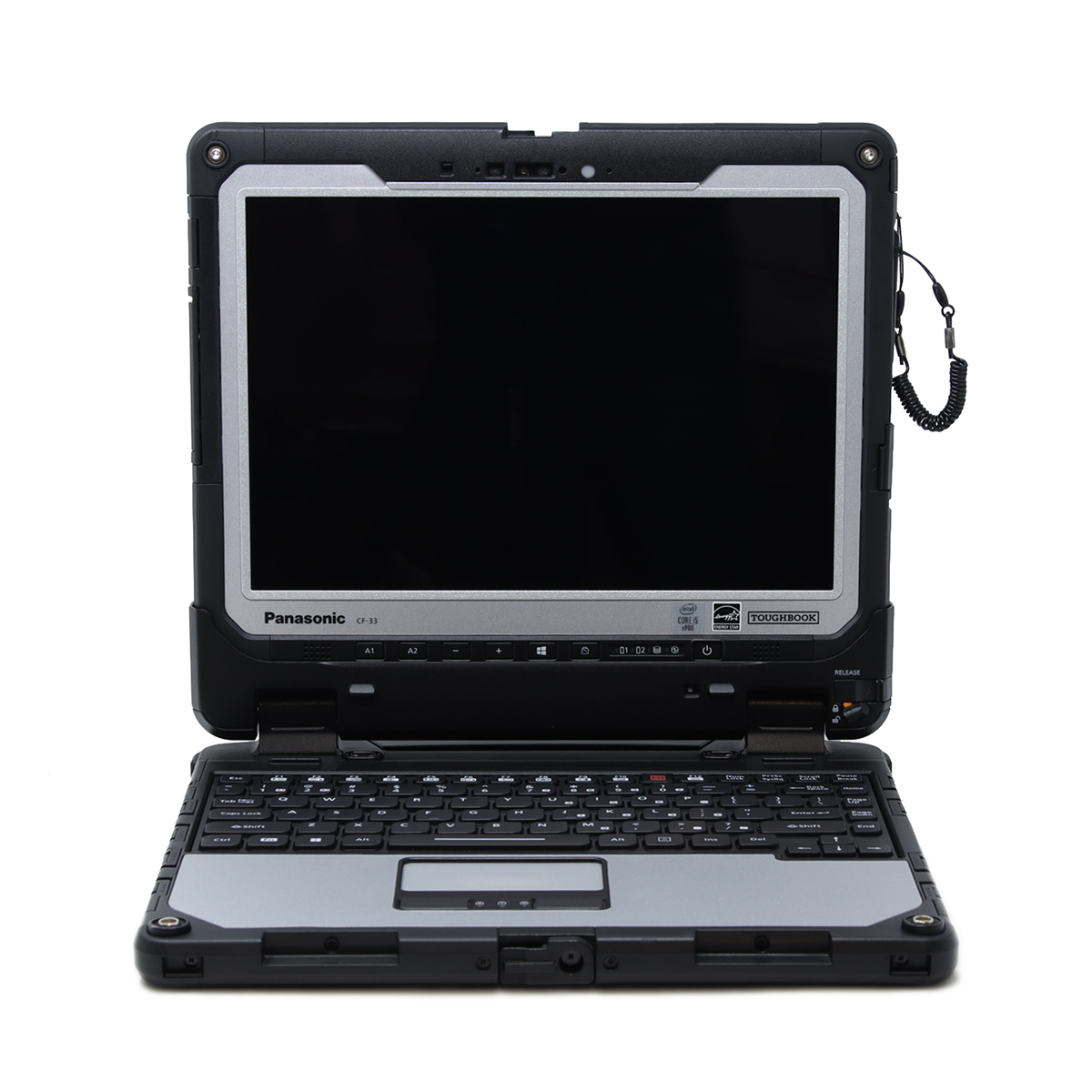
The CF-33 is a fully rugged detachable 2-in-1. Remove the keyboard, and the screen becomes an automotive diagnostic tablet that's easier to carry around a vehicle or use inside a cabin. Its daylight-readable touchscreen also suits technicians who work outdoors.
Choose the CF-33 when tablet operation and mobility matter more than a conventional laptop workflow.
Panasonic Toughbook CF-31 MK6: A Lower-Cost Refurbished Option
The CF-31 MK6 is an older fully rugged Toughbook that offers a lower-cost way into rugged hardware. As the newest CF-31 generation, it also gives you more processing power and memory capacity than earlier versions.
Its age is still the main tradeoff. Before buying, confirm that its Windows version, ports, and drivers meet the requirements of every diagnostic application you plan to run.
What Else Do You Need for Automotive Diagnostics?
A Toughbook runs the diagnostic software, but it is not the diagnostic tool itself. A typical PC-based automotive diagnostic setup looks like this:
- Vehicle → OBD-II cable/connector → diagnostic interface (VCI or J2534 pass-thru) → Toughbook → diagnostic software
Start your research with the diagnostic interface and software you plan to use. The hardware requirements for both can affect which Toughbook and configuration will work for your setup.
Along with the Toughbook, you may need:
- A VCI or J2534 pass-thru device: Serves as the communication interface between the Toughbook and the vehicle's electronic control modules.
- An OBD-II cable and connector: Provides the physical connection between the diagnostic interface and the vehicle's diagnostic port. Through that connection, the diagnostic software can access real-time vehicle data and retrieve an automotive diagnostic trouble code (DTC).
- Automotive diagnostic software: Provides access to trouble codes, live vehicle data, diagnostic reports, and other supported diagnostic functions.
- An OEM software or subscriptions: May be required for module programming and other manufacturer-specific service functions.
- An internet connection: Some diagnostic software requires internet access for authentication, updates, OEM resources, or online functions.
- A battery maintainer or programming power supply: Keeps vehicle voltage stable during module programming and flashing.
Together, these components make up the diagnostic setup your Toughbook needs to support.
 What to Look for in an Automotive Diagnostic Toughbook
Once you know what your diagnostic setup requires, you can narrow down the Toughbook specifications you need. Your diagnostic software and interface should drive many of those decisions, so check their requirements before choosing the processor, RAM, storage, ports, and other features you need.
Processor
Don't stop at the minimum CPU listed for your diagnostic software. Aim for the recommended spec, especially if you keep service information, browser tabs, or another diagnostic program open while you work. A little extra processing power also gives you room for future software updates.
RAM
For most diagnostic work, 16GB of RAM gives you a good starting point. For example, Mercedes-Benz recommends 16GB for XENTRY, while Volkswagen lists 16GB for ODIS Service. Some software needs more, as Honda's current i-HDS requirements call for 32GB or greater.
Moving to 32GB also makes sense if you regularly keep several diagnostic programs, service information, browser tabs, and other applications running at once.
Storage
Diagnostic suites, service information, and updates can eat into storage over time. Ford IDS, for example, calls for at least 40GB of free space for installation and vehicle data. An SSD with some extra room gives you space for those files and the other applications your shop uses.
Windows Support
Older refurbished Toughbooks can still handle automotive diagnostics, but the operating system has to work with your software. Check the Windows requirements for each diagnostic application before choosing a model.
Ports and Connectivity
Your VCI, J2534 device, and other diagnostic hardware determine which ports you need. The FZ-55's configurable expansion options give you some flexibility, so focus on the connections your current equipment uses.
- USB-A or USB-C: For compatible diagnostic interfaces and accessories.
- Ethernet: For diagnostic or programming equipment that requires a wired connection, including DoIP (Diagnostics over Internet Protocol), used for programming many late-model vehicles.
- Bluetooth and Wi-Fi: For compatible wireless interfaces and internet access.
- Native RS-232 serial: For existing diagnostic equipment that requires a serial connection.
There's no reason to load the Toughbook with every available port. Choose the connections that fit the diagnostic equipment already in your shop.
Display and Touchscreen
Prioritize screen brightness if technicians diagnose vehicles outdoors. A touchscreen can also make the laptop easier to operate while moving around a vehicle, especially when glove-capable touch is available. For a laptop that rarely leaves an indoor bay, extreme brightness may be less important than display size and touch capability.
Battery Configuration
Consider how long the laptop normally runs away from AC power and whether a hot-swappable second battery would benefit your workflow.
Find the Right Toughbook for Automotive Diagnostics
As mentioned, the Toughbook FZ-55 is our best overall pick, but the best model and configuration depend on how you run diagnostics. Your software may require certain hardware, while your workflow can determine whether features like a touchscreen or extra battery are worth having.
With so many options to sort through, choosing a configuration can get complicated quickly. For Selection Assistance, fill out our form and let us know what you're looking for. We’ll help you find the right option for your shop. Prefer to talk it through? Call us at (302) 659-2727 for assistance.